

With the release of Windows 11 24H2 last year, and the super slow roll out of it to devices, one thing you may have missed, and also somewhat slipped under the radar, is that Microsoft have removed the AC-3 (Dolby Digital) codec, explaining in the support document that “many device manufacturers will pre-install an AC-3 codec”. However, if you upgrade from an earlier edition on Windows 11 to 24H2, that codec will remain on the system.
For those that opted to clean install Windows 24H2, or bought a new computer with it preinstalled without the codec, luckily there is a third party fix to restore AC-3 support, as discovered in multiple topics on Reddit, my guide is inspired by this post. Apps like Plex might have an issue where AC-3 is required and no sound will be heard. This can be restored with the AnWave 2024 Split Feature Release, found on GitHub.
— Update Dec 7, 2025 —
A reader reported that this guide became outdated because it linked to a Microsoft Defender uninstaller, however that is not the case, instead of the standalone Microsoft.Dolby.Digital.Atmos.Pack that was offered earlier this year, the developer now only offers restoring Dolby AC-3 through the AnWave app, which is a Windows 11 tweak utility. So I have updated the instructions below. There is also an easier new method below the AnWave option.
First, a bit about the program:
AnWave is a personal project developed using Visual Studio 2022 C#. Includes AMD Radeon Software Customize Setup, For customizing AMD Software: Adrenalin Edition installation. and NVIDIA Power Management, For used to create GPU power profiles for each application. and Microsoft Defender Uninstaller, For used to remove Microsoft Defender components. and Windows Key-Point, Best Windows 10 or 11 Settings Options Organizer. and AnWave Advanced Cleanup Utility, Cleanup AMD and NVIDIA graphics card drivers and application utilities.
AnWave All in One Features
- 【Main Feature】AnWave UI – Manage downloaded AMD/NVIDIA drivers
- 【Main Feature】AMD Radeon Software Customize Setup
- 【Main Feature】Advanced Cleanup Utility
- 【Main Feature】NVIDIA Power Management
- 【Main Feature】Windows Key-Point
- 【Main Feature】Microsoft Defender Uninstaller
via AnWave Installation instructions (old method)
- Download AnWave from AnWave
- Install it, decide if you want to bypass the “Windows Protected your PC” prompt (it will install into a Windows temp directory by default, but you can change this)
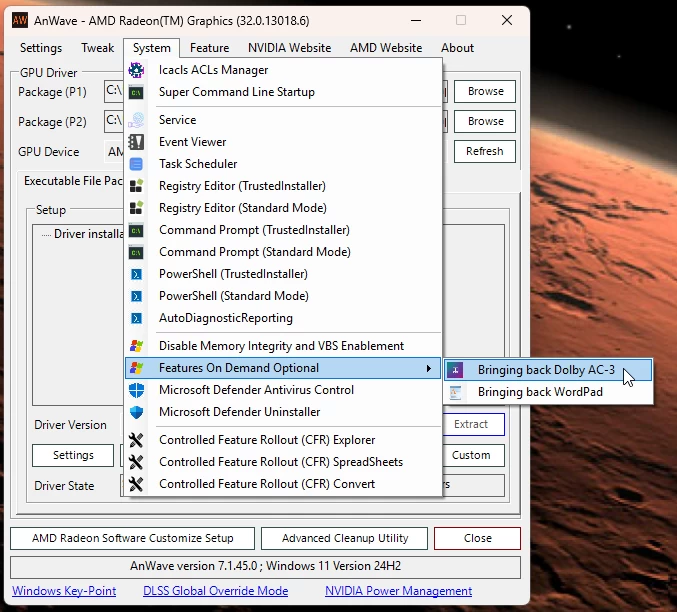
- Run the AnWave program (shortcut on Desktop), Menu > System > Features on Demand Optional > Bringing back Dolby AC-3.
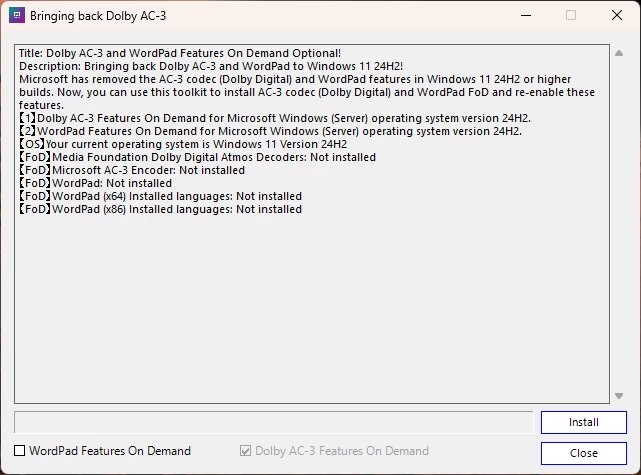
- Click Install button to install Dolby AC-3 FoD.
- Enjoy AC-3 content working again!
- The AnWave program removes itself when closed.
via Majorgeeks (new method)
- Download the Dolby_AC4_AC3_Installer.zip from MajorGeeks
- Unzip the file and double click on the DolbyLaboratories.DolbyDigitalPlusDecoderOEM_1.1.285.0 AppxBundle file (double check if you already have a newer version)
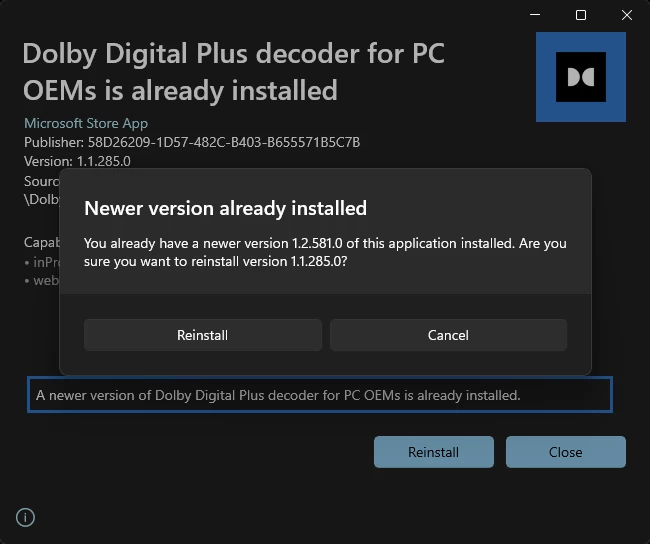
- Double click on the DolbyLaboratories.DolbyDigitalPlusDecoderOEM_1.1.285.0 AppxBundle file to install it
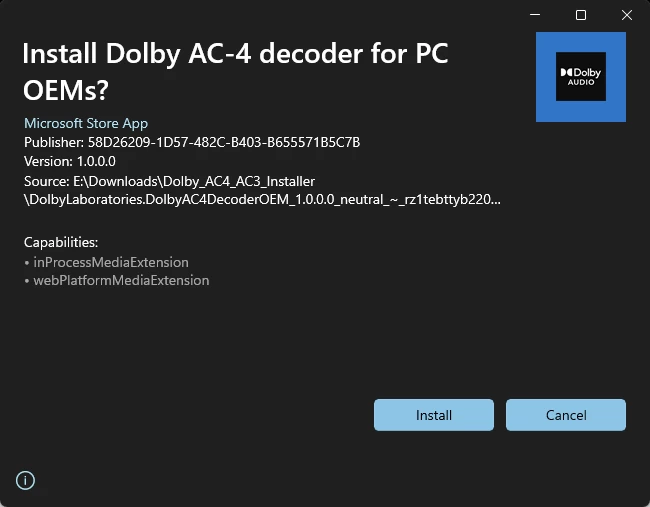
- Profit!
In my case, the AnWave method installed a newer AC-3 decoder, so you might want to consider doing a mix of both methods to get the latest versions.
— End of Dec 7, 2025 update —
Plex settings
It’s important to note that in the case of Plex (and possibly others) the audio settings should also match your speaker setup. If your audio equipment is stereo, like for example, speakers built into your monitor or desktop stereo speakers then you should also make sure Plex knows this, otherwise some content will be quieter because Plex will attempt to direct play all audio channels through your stereo setup, some channels are quieter than others, which results in an overall lower volume in some cases; a more detailed explanation can be viewed here.

- Go to Settings, and in the left panel where you see Plex for Windows, click Player
- Toggle Show Advanced top right of the Player settings page
- In the Audio Device dropdown setting, change this from Auto to your actual Audio Device
- Depending on your audio device you can choose Basic, Optical, or HDMI
- Then set the Audio Channels that match your system.
Now Plex will “intelligently” downmix the audio to the correct format, as outlined in their own documentation, and EAC-3 5.1 content should also be a bit louder on Stereo setups.
Hopefully this helps people that have discovered some of their content no longer has audio, but also why some content is quieter than others. For example, Emby does not appear to have the same issues that Plex has with audio output, content that has no sound in Plex will work in Emby, because Emby includes many codecs native to the Windows app.