

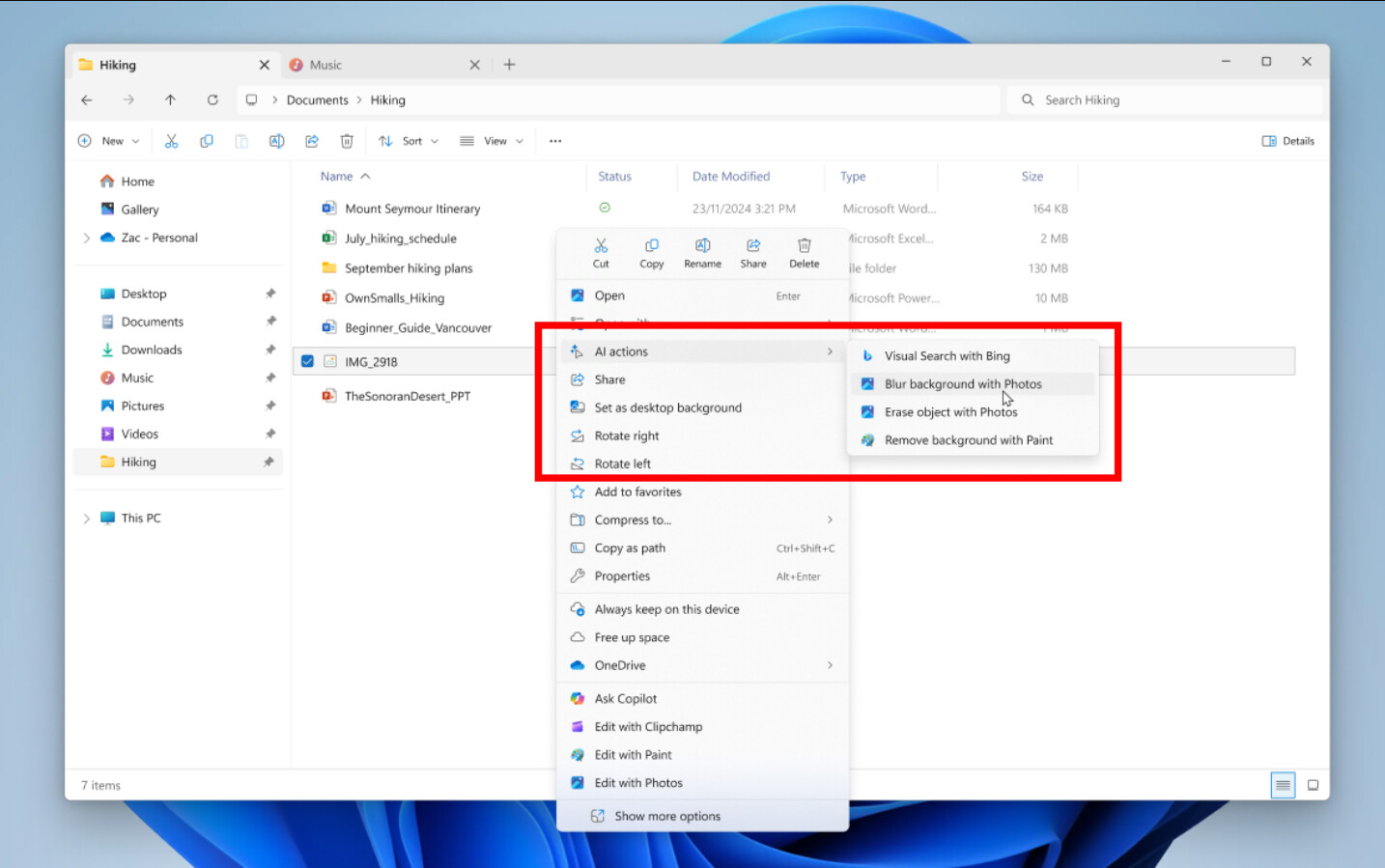
Microsoft may have only added AI Actions to Windows 11 context menus in May, but the company has already bent to user demands to make it optional in one of the latest Windows 11 builds, version 26220.7344.
In the release notes, Microsoft says, “If there are no available or enabled AI Actions, this section will no longer show in the context menu.” According to Windows Latest, you can also remove AI Actions from the context menu in one fell swoop by going to Settings > Apps > Actions and unchecking all of the associated options, such as Paint, Photos, and Teams.
In previous versions of Windows 11, if you checked these options, it would leave the AI Actions visible in the context menu, but would be empty, taking up precious space in the context menu, which is already pretty busy. When interacting with an image, the AI Actions list allows you to do a Visual Search with Bing, Blur background with Photos, Erase object with Photos, or Remove background with Paint. These may be useful quick actions for some users, but those who don’t want to see them can now remove them as of the latest insider build.
The AI Actions menu is also a bit lousy because, really, all it is doing is linking you off to different applications; you can already replicate its function by using Open With and selecting the program you want to open the file in and perform the actions there. A screenshot Neowin nabbed in May of the AI Actions feature even shows options for an image like Edit with Paint and Edit with Photos, giving you quick access to those apps.
That same image shows 18 items in the context menu, which doesn’t include a top row of actions and the show more options item. By comparison, in Fedora Xfce, the context menu when you right-click an image has just ten items. Clearly, Microsoft is getting very carried away with the options it is giving users, and it’s no surprise that people want the choice to remove options.
Microsoft is also making other context menu improvements, including a manage file sub-menu consolidating options like Compress to… and Copy as path. Additionally, all OneDrive-related options are being grouped into a single OneDrive option.